Your account and sign-in
Change your profile, set a password, and find the right workspace.
Your OffPress account lets you sign in and access the workspaces you own or have joined. This is different from Site settings → Account settings inside a site’s CMS, which controls customer and member registration. See Customer and member accounts.
Change your name
- Open your account menu in the sites area.
- Choose Account settings.
- Edit Name under Profile.
- Select Save profile.
The email shown here is your sign-in identity and is read-only in this form.
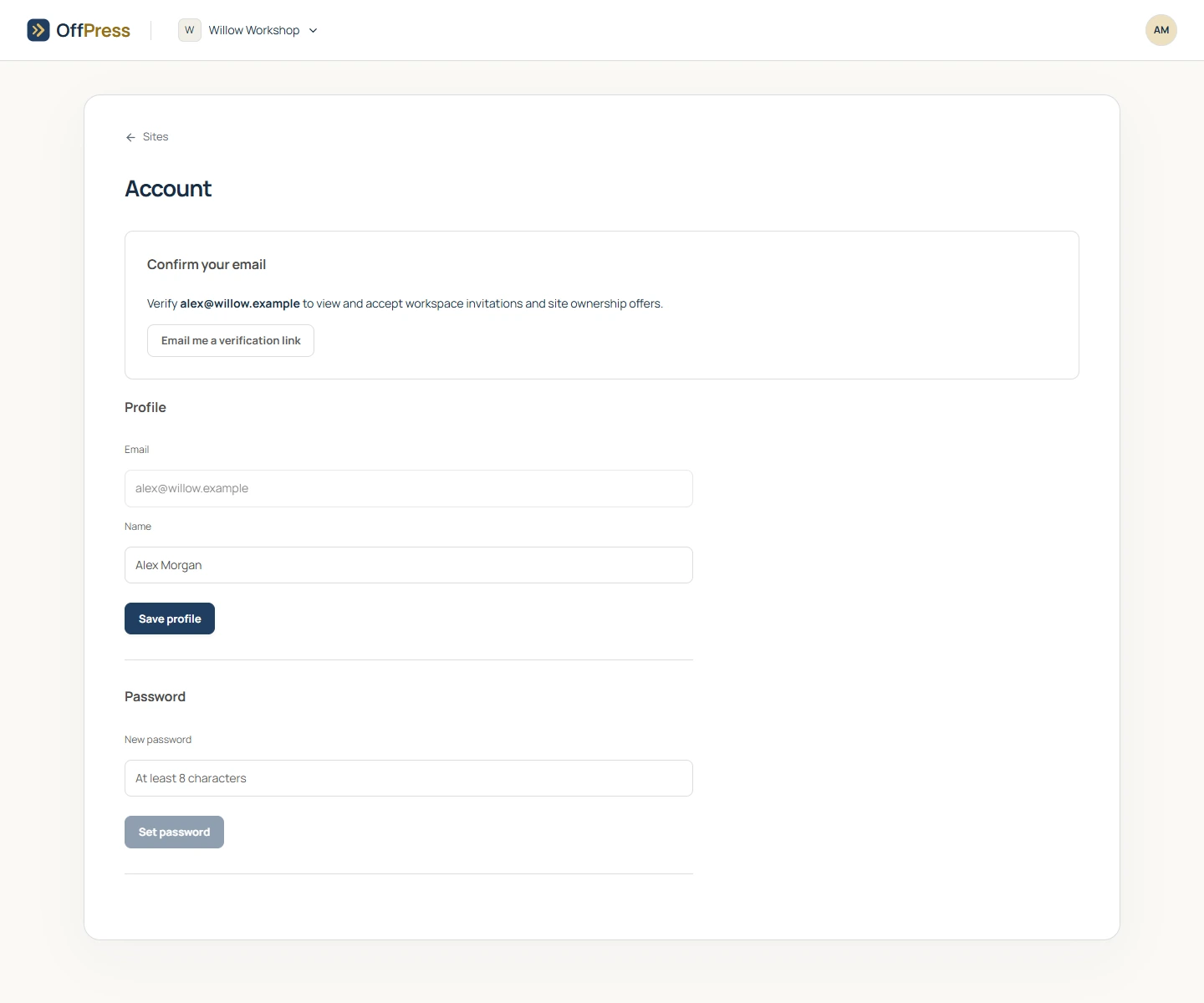
Confirm your email
If Confirm your email appears, choose Email me a verification link. Open the message and follow its link. A confirmed email is required to view and accept workspace invitations and site ownership offers.
Set a password
Under Password, enter a new password with at least eight characters and select Set password. Wait for the saved message before signing out.
Use the sign-in method you set up for your account. If you cannot sign in, use any recovery option shown on the sign-in screen or contact OffPress.
Find a workspace or invitation
Use the workspace selector at the top of your sites area. If you were invited to collaborate, sign in with the invited email address and open workspace settings to accept the invitation.
Check the selected workspace if a site or billing balance appears to be missing. See Invite people and manage access.
Sign out
Open the account menu and choose Sign out when you are finished on a shared computer. Your site content and saved work remain in the workspace.
Still need help? Contact OffPress with your site name and what you were trying to do.