Invite people and manage access
Give collaborators the site access and permissions they need.
Team access belongs to a workspace or a specific site. People can collaborate without buying their own plan; work they start uses the workspace’s balance when they have permission.
Invite someone
- Select the workspace in your sites area.
- Open Workspace settings.
- In Team, select Invite.
- Enter the person’s email address and choose one site or all workspace sites.
- Choose a role and review the additional permissions.
- Select Send invitation.
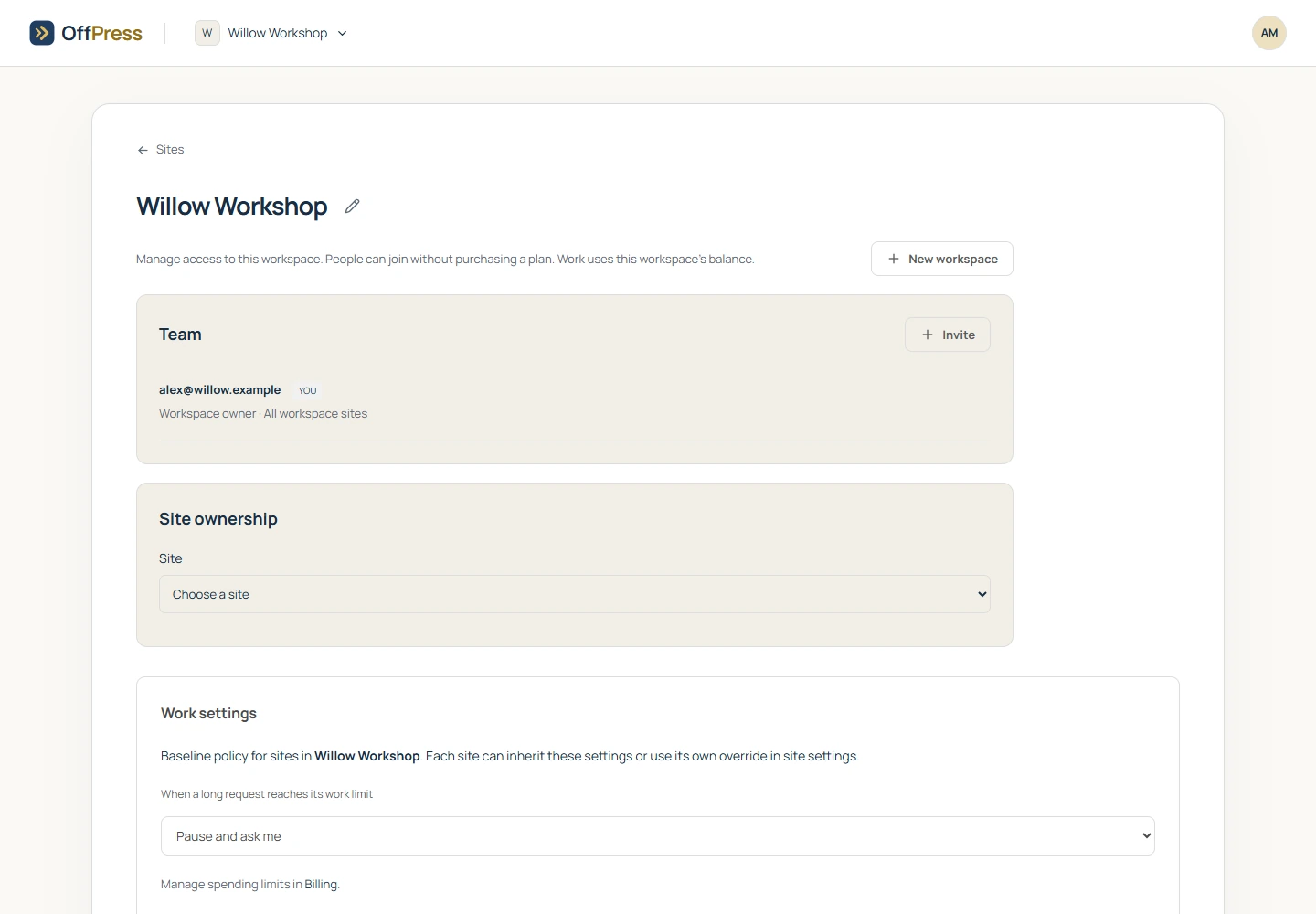
The recipient signs in with the invited email address, confirms that email if asked, and accepts the invitation shown in their workspace settings.
Choose a site role
| Role | Main use |
|---|---|
| Reviewer | View previews. |
| Content manager | Edit site content. |
| Builder | Work on site code and data. |
| Site manager | Also configure the site. |
Review the separate permissions for publishing, starting work using the workspace balance, recurring AI work, and store operations. A role name alone does not enable every action. Content Admin store management also requires publishing permission. OffPress Inbox uses store access; activating it or enabling automatic answers also needs the relevant management, publishing, and automated-work permissions. A customer’s website login does not grant staff or OffPress team access.
Workspace owners can also assign workspace-wide Administrator or Billing only access. Only the owner controls site ownership and deletion.
Change or remove access
In Team, choose Edit access for the person, change the permissions, and select Save access. Use Remove when their access should end.
For a client handover, use Transfer a site. For work budgets, see Set work limits.
Still need help? Contact OffPress with your site name and what you were trying to do.