Connect payments
Connect Stripe in Content Admin and test checkout before enabling live payments.
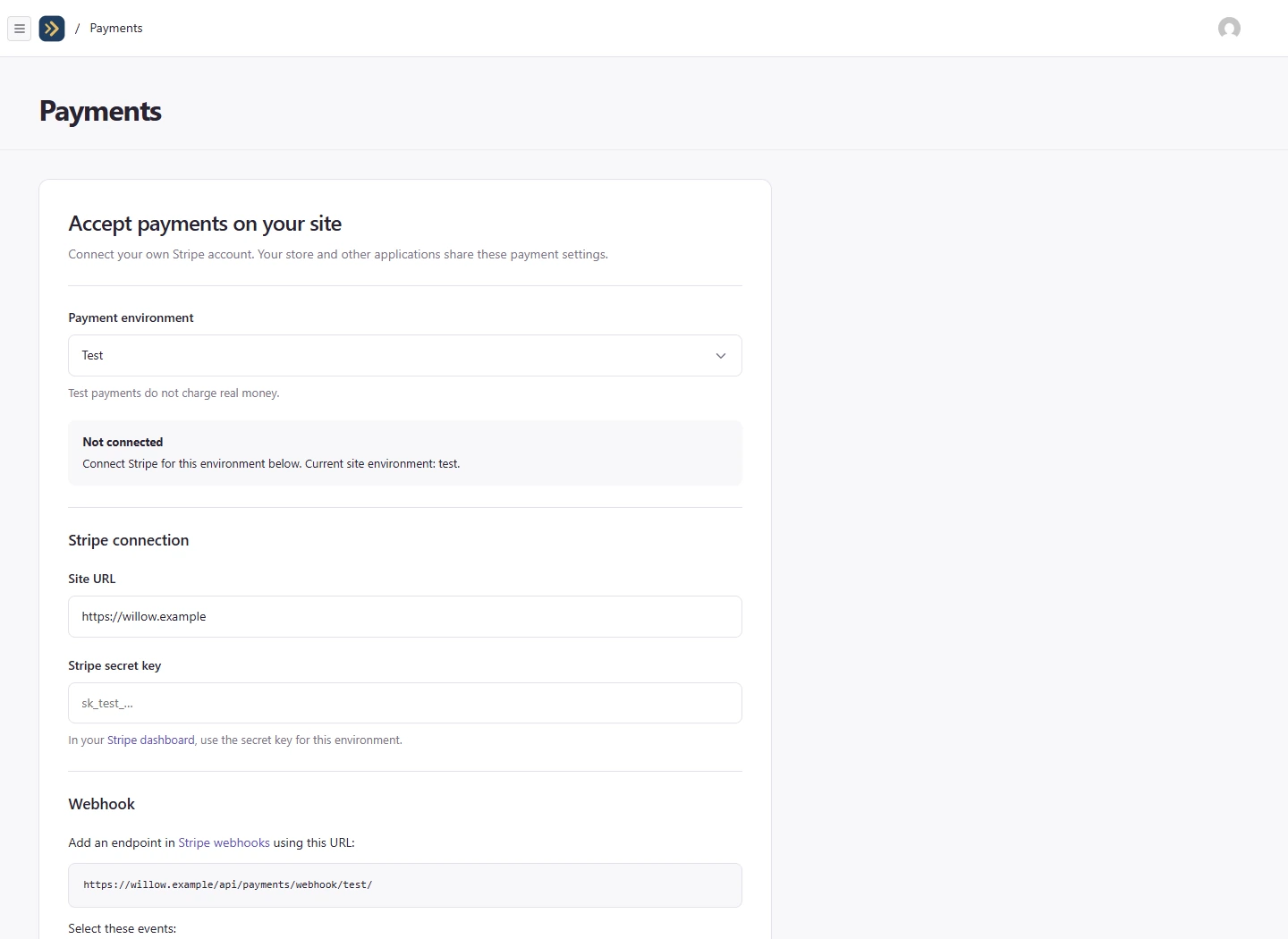
Your site’s payment settings are separate from the subscription you pay for OffPress. Configure them in Content/Store → Workspace → Payments.
Configure test payments
- Choose Test under Payment environment.
- Enter the site URL requested by the form.
- Enter the Stripe secret key for that environment in Stripe secret key.
- In Stripe, add a webhook using the exact URL shown in the form and select the listed events.
- Copy its signing secret into Webhook signing secret.
- Select Enable test payments and choose Save payment settings.
Enter keys in the payment form, rather than in a chat message. Test and live environments use different keys and webhook secrets.
Test checkout
Enable checkout in Store settings, then complete a test purchase. Test payments do not charge real money. Check that the order is recorded and the confirmation page appears.
If the payment form reports missing email delivery, configure that before expecting order confirmation emails. The order confirmation page and the email are separate results.
Set up live payments
- Publish the site and confirm its public address.
- Return to Workspace → Payments and choose Live.
- Configure the live site URL, live Stripe key, and live webhook signing secret.
- Review any checkout currencies you want to allow.
- Enable live payments and save.
- Check the displayed current site environment and the store’s Enable checkout setting.
Live payments charge real money. Use the form’s environment setting only when it is offered; some site environments are fixed.
Change or troubleshoot settings
Leave a saved key field blank to keep its current value. If checkout fails, read the error, check the payment environment and URL, and verify the webhook setup. See Manage orders for refunds and fulfillment.
Still need help? Contact OffPress with your site name and what you were trying to do.