Publish your site
Review your preview and publish the current site code to the live website.
Publishing makes the current site code available on the public website. You need publishing permission and enough hosting capacity in the site’s workspace.
Check before publishing
Open the main pages in the preview. Check phone layouts, links, forms, and any checkout or signup flow. For an imported site, complete Review an imported site. Use the practical launch checklist for your real visitor journeys.
New CMS pages and posts start as Draft and have their own Publish action. Saving changes to an already-published item can affect the live site immediately. The main OffPress Publish control releases site code and design; it is not a second approval step for those content edits.
Publish
- Open your site and select the site’s Publish control.
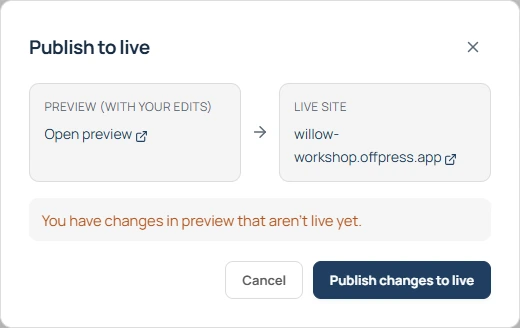
- In Publish to live, review the preview and live-site addresses.
- Choose Publish changes to live or Publish to live, as shown.
- Wait for the success message.
- Open the live site and check the changed pages.
Publishing does not itself move your existing domain. Follow Connect a custom domain when you are ready.
If hosting is required
Use Open billing if the dialog reports a missing hosting plan or slot. Select the workspace that owns this site, review its hosting capacity, then return and try again. Ask the workspace owner if you cannot manage billing.
If publishing fails
The dialog shows the error and keeps the previous live site in place. When Fix automatically & retry is offered, it starts work to repair the problem. That work can use your work balance.
Review the repair and the final publishing result. If it still fails, use Troubleshooting and include the visible error when contacting support.
Still need help? Contact OffPress with your site name and what you were trying to do.